
How to create a board and add an image
New board, first image on the canvas. Under a minute.
Prerequisites
- Moodis desktop app open
- An image file on your computer (JPG, PNG, GIF, WebP or SVG)
1. Start a new board
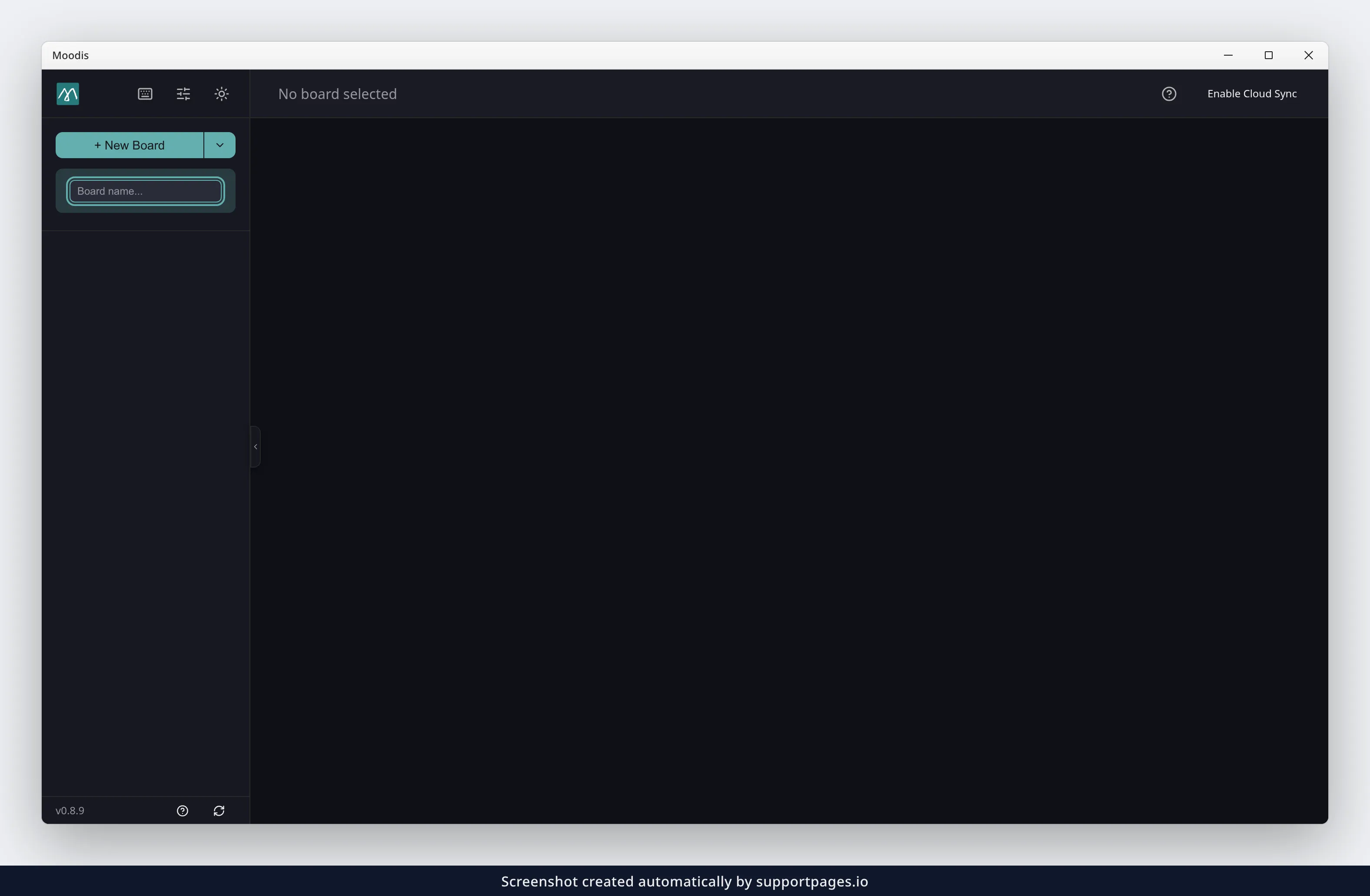
Click + New Board at the top of the sidebar. A name field opens below it.
2. Name it
Type a name in Board name…. Press Enter. The board is created and opened.
3. Add an image
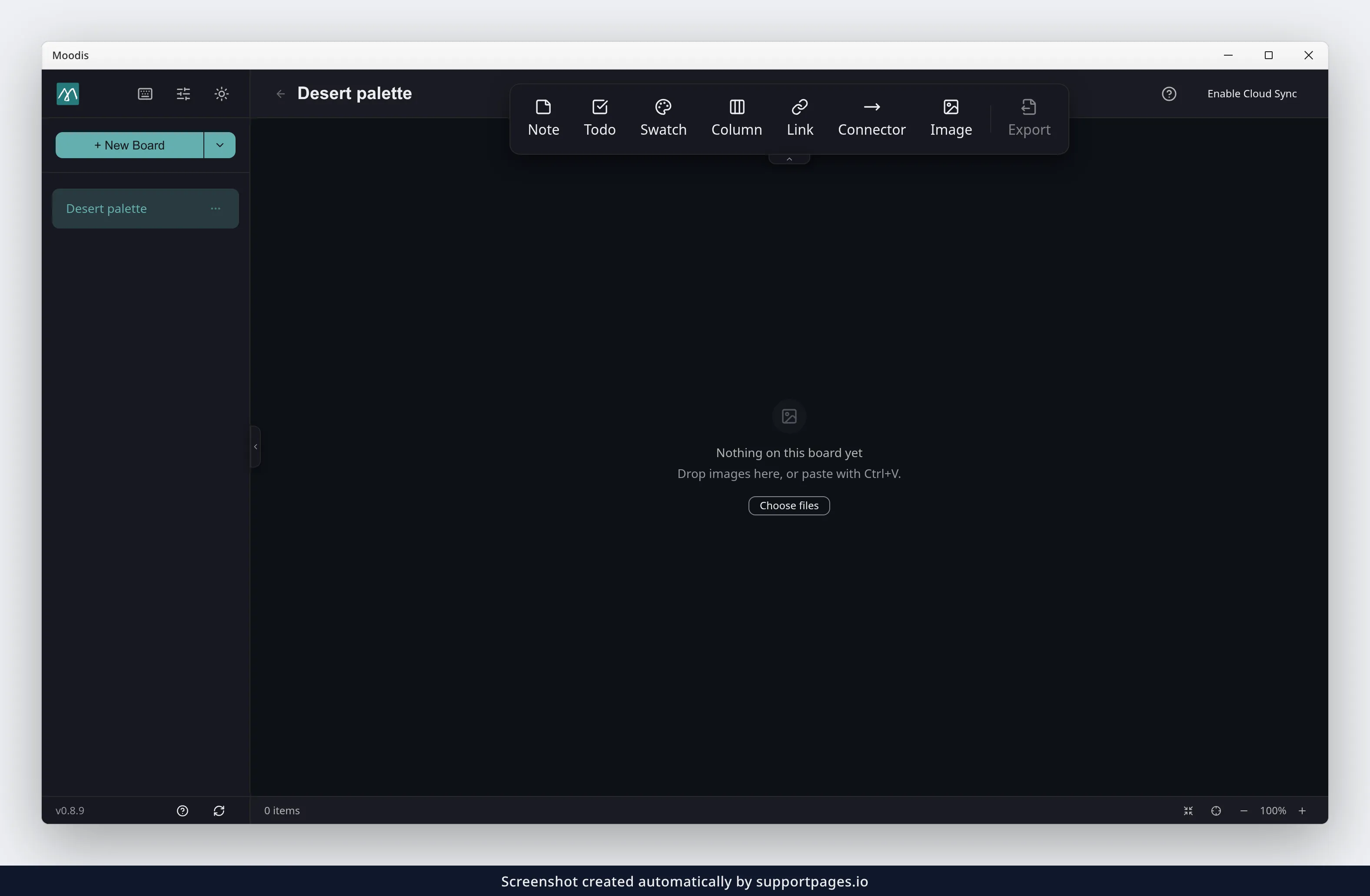
Click Image in the floating toolbar, or press I. On an empty board, Choose files works too. Pick one or more image files and confirm.
4. Check the canvas
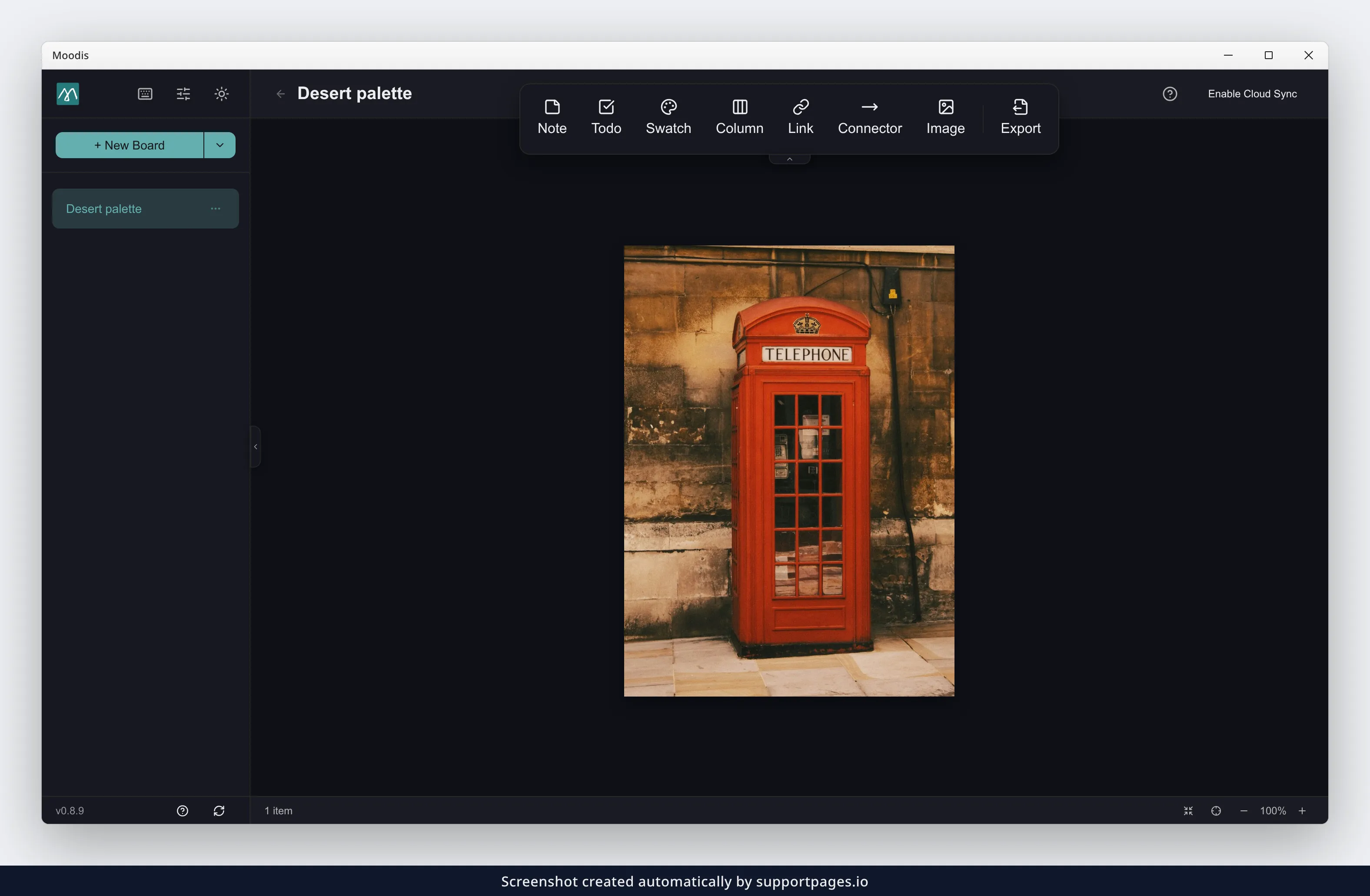
The image lands on the canvas. The footer item count goes up by one.
Other ways to add images
Tip: Drag image files from your file manager onto the canvas.
Tip: Copy an image, then press
Ctrl+Vwith the board open.Tip: Select several files in the picker to add them in one go.
Tip:
Esccancels a new board name.Tip: Reopen a board later from its name in the sidebar.
Summary
+ New Board, name, Enter. Then Image, pick a file. Done.
Which image files can I add?
JPG, PNG, GIF, WebP and SVG. Other formats, such as BMP or TIFF, are refused, so save them as one of these five first.
How large can an image file be?
Up to 50 MB per image, in the desktop app and on the web. On the web an image can also be at most 10,000 pixels on each side. SVG files have a much smaller limit, because each one is checked for unsafe content before it goes on the board.
How many images can a board hold?
There is no separate limit on images. A board holds up to 10,000 items, and notes, links and other items count towards that too.
Can I drag an image straight from a web browser?
No. Moodis tells you it cannot drop from a browser. Save the image to your computer and drag it in from your file manager, or copy the image in the browser and press Ctrl+V on the board.
What happens to the original file?
Nothing. The desktop app stores its own copy of the image in its data folder, scaled down to 2048 pixels on the longest side if it is larger, and the board uses that copy. Moving, editing or deleting the original does not change the board.
Can I undo adding an image?
Yes. Press Ctrl+Z to take it off the board again, and Ctrl+Shift+Z or Ctrl+Y to put it back.
Do I need to save the board?
No. Moodis saves the board on its own about half a second after each change.