
Keyboard shortcuts: the complete list
This page lists every keyboard shortcut in the Moodis desktop app for Windows and Linux, grouped the way the in-app sheet groups them.
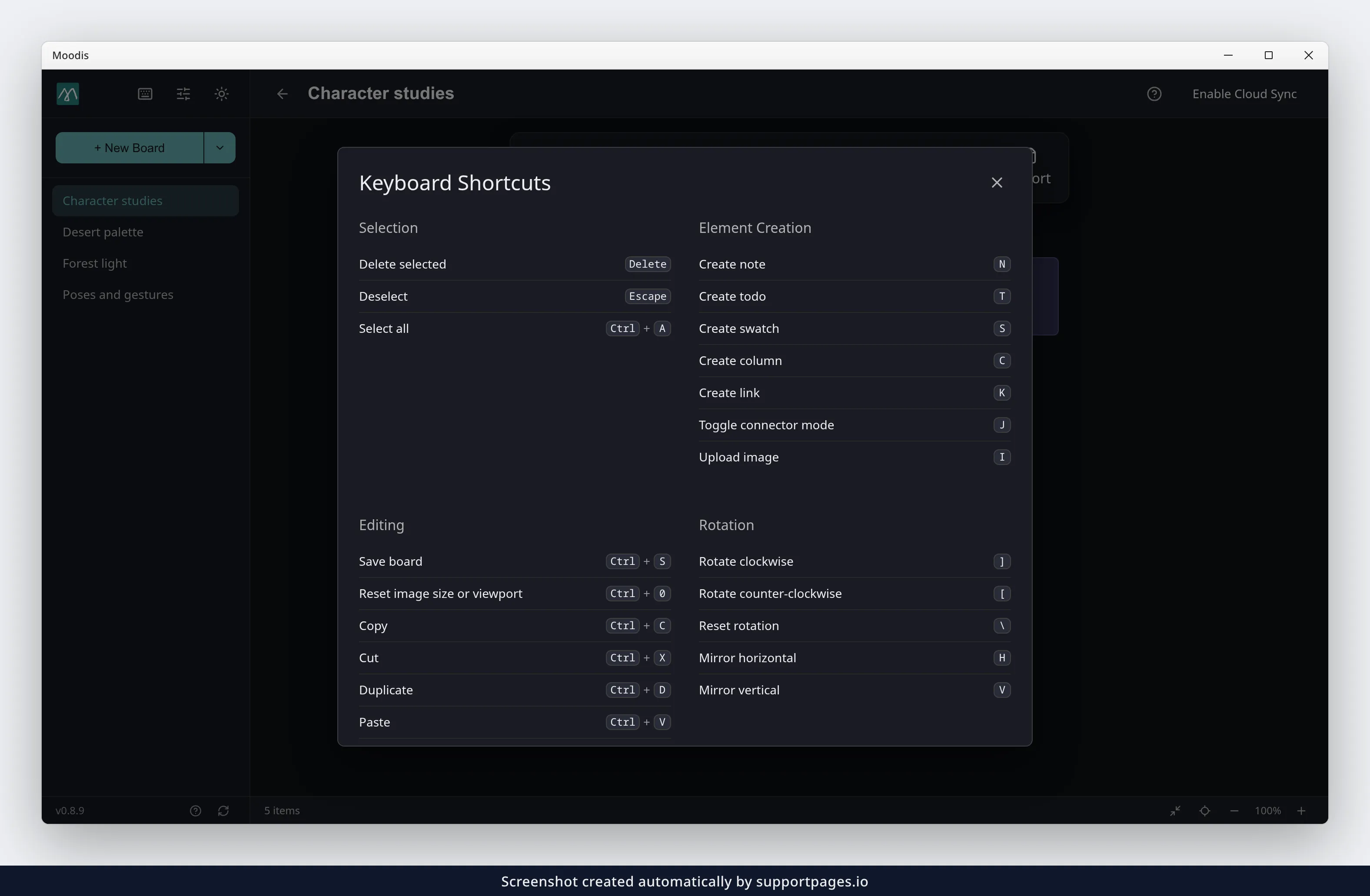
Open the shortcuts sheet
Click Keyboard shortcuts in the sidebar header. Or open Help in the header and choose Keyboard shortcuts. Esc closes it.
When keys work
- Shortcuts act on the open board.
- Ignored while you type in a text field, including single-letter keys. Only
Esc,Ctrl+Shift+PandCtrl+Shift+Mstill work there. - Editing keys are off on a board you can only view. Still on:
Esc,Ctrl+A,Ctrl+C,Ctrl+0,G,Ctrl+B,Ctrl+Shift+PandCtrl+Shift+M. Ctrlis the modifier on Windows and Linux.
Element Creation
NCreate noteTCreate todoSCreate swatchCCreate columnKCreate linkJToggle connector modeWToggle pen toolIUpload image
Selection
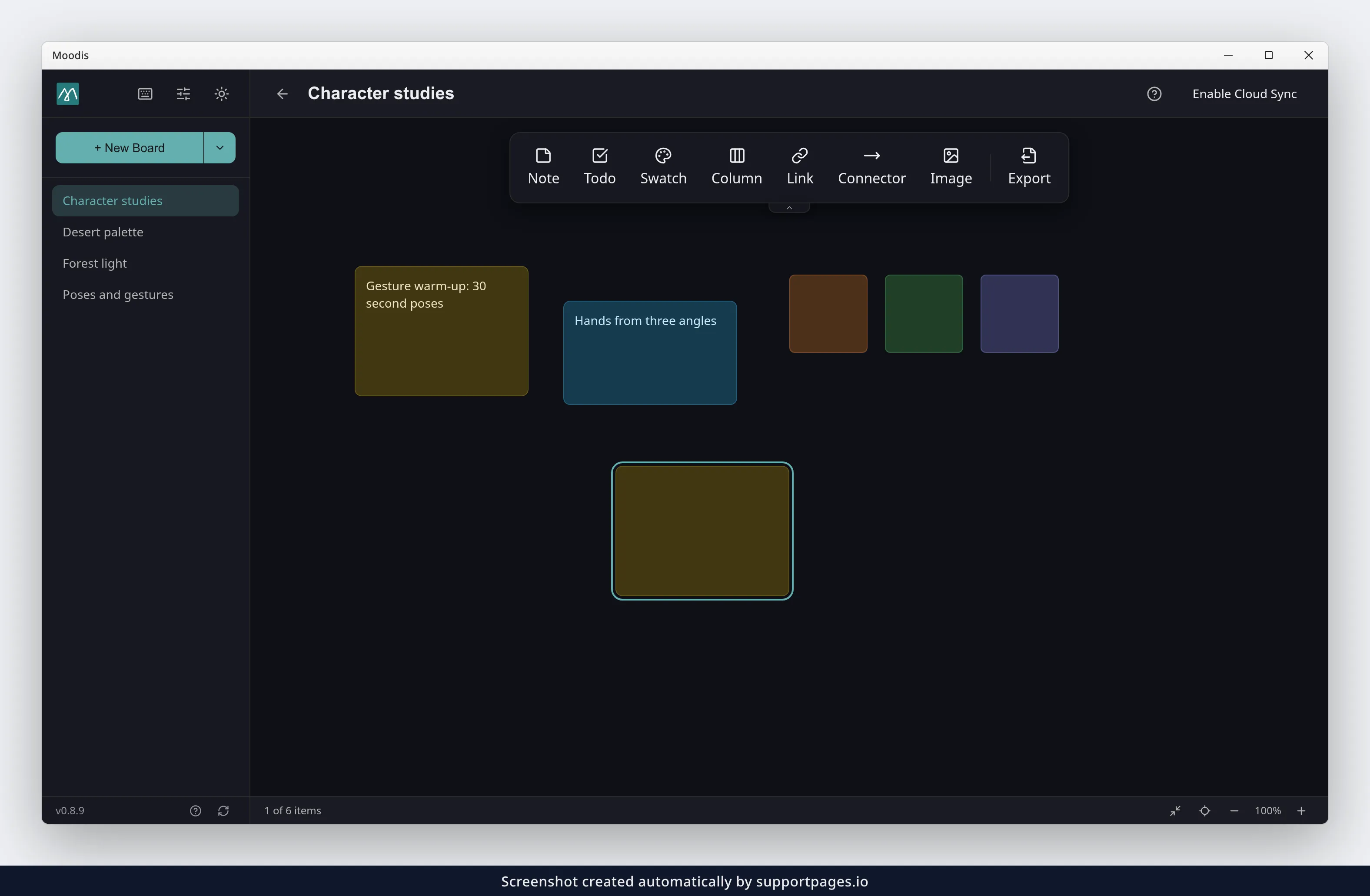
DeleteorBackspaceDelete selectedEscDeselectCtrl+ASelect all
Editing
Ctrl+SSave boardCtrl+0Reset image size or viewport. Resets selected images; with no image selected, resets the view.Ctrl+CCopyCtrl+XCutCtrl+DDuplicateCtrl+VPasteCtrl+ZUndoCtrl+Shift+ZorCtrl+YRedo
Copy, Cut and Duplicate need a selection.
Rotation
Select exactly one image first.
]orRRotate clockwise[Rotate counter-clockwise\Reset rotationHMirror horizontalVMirror vertical
Layers
Select one or more elements first.
Ctrl+Shift+]Bring to frontCtrl+Shift+[Send to backCtrl+]Bring forwardCtrl+[Send backward
Arrange
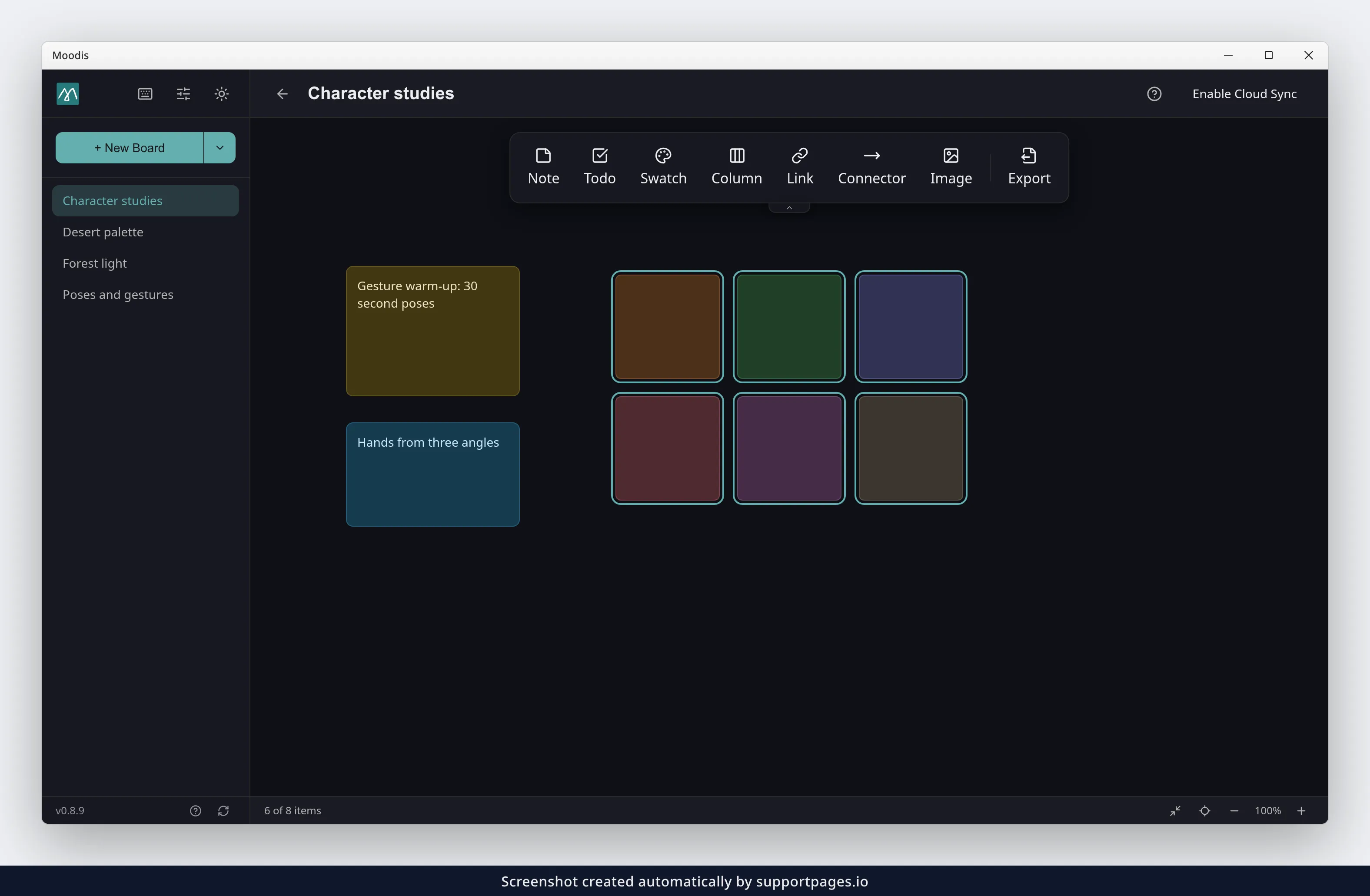
Select two or more elements first. Locked elements, connectors and items inside a column do not count. With fewer, the keys do nothing.
AAuto-arrangePSpread outShift+AShuffle layout
To arrange the whole board, right-click the canvas instead.
Other
LToggle lock (needs a selection)GToggle gridCtrl+BToggle sidebarF2Rename boardCtrl+Shift+PPin window on topCtrl+Shift+MCompact mode
Ctrl+Shift+P and Ctrl+Shift+M are desktop only.
Modifiers
Shift+ drag: Disable grid snappingShift+ rotate: Snap to 15 degree anglesShift+ resize: Free resize (ignore aspect ratio)- Pinch: Zoom (trackpad)
Ctrl+ scroll: Zoom at the cursor- Mouse wheel or two-finger scroll: Zoom, or pan if set to Pan in Settings
Summary
N, T, S, C, K, J, W and I create. Brackets rotate and layer. A and P arrange a selection. Forgot one? Open the sheet.
Why does a shortcut do nothing?
Shortcuts are ignored while you type in a text field, so click the canvas first. They are also off on a board you can only view, and some need a selection: the Arrange keys need two or more elements, and the rotation keys need exactly one image.
Can I change the shortcuts?
Not at the moment. The keys are fixed.
Where is the full list inside the app?
Click Keyboard shortcuts in the sidebar header, or open Help and choose Keyboard shortcuts. The sheet is built from the keys the app actually uses, so it always matches.